
Live interactive virtual classroom
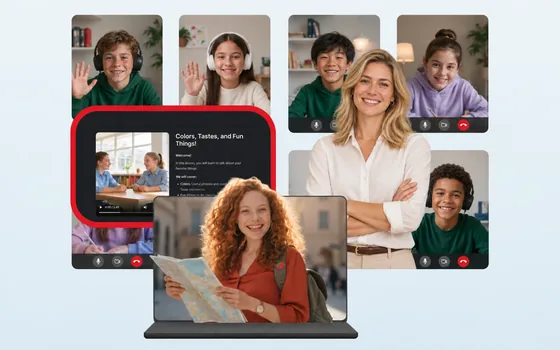
Students on the other side of the screen join in, too.
Quizzes, polls, a whiteboard, breakout rooms and mini games, all inside the live lesson. When class ends, attendance, talk time and quiz results are waiting for you in the report.
Superclass
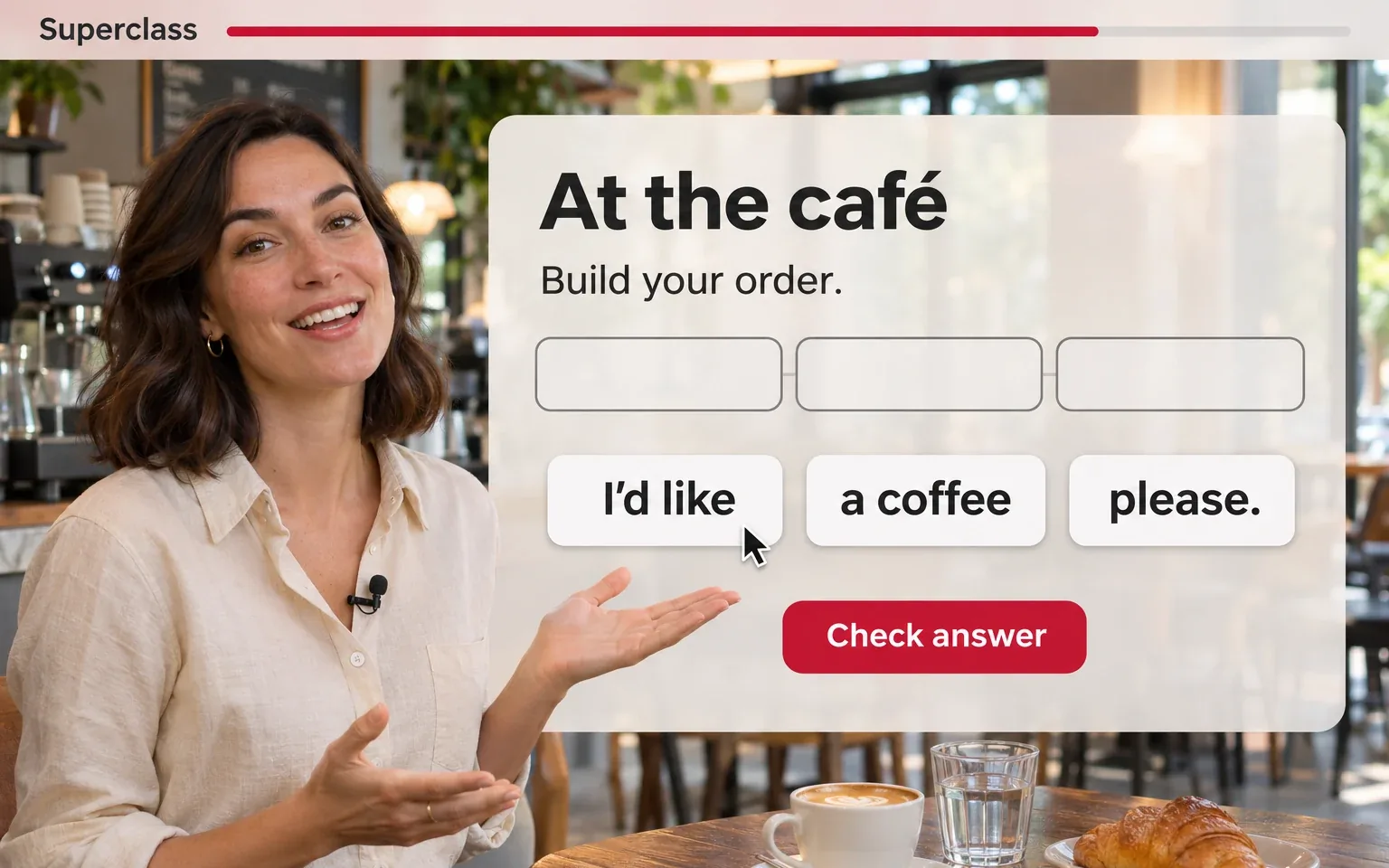
Superclass is Scholege's live teaching platform. The teacher opens prepared lesson scenes, PDFs and images for the whole class at once, and pulls students in with quizzes, polls, a whiteboard and breakout rooms. When class ends, attendance, quiz results and participation data are ready in the report. Depending on the recording mode you choose, the recording and transcript are there too.
- Format
- Web-based live classroom; everyone joins through a link made for that lesson
- Who it's for
- Schools and institutions that teach live, plus their teachers and students
- In your school
- Scheduled live lessons and Speaking Club sessions
- Outcome
- A delivered lesson, attendance, quiz results, a participation report and an optional recording
How it works
Every scheduled lesson ends with a report.
- 1
Schedule the lesson
Your institution or your LMS creates the lesson with its date, length, teacher and lesson script. You can add a backup teacher from the start, in case something goes wrong.
- 2
Send the links
Teachers and students don't deal with passwords. They join with one click on their personal link. You can also create a separate link for people who only need to watch.
- 3
Teach the lesson live
You turn the scenes and PDF pages, and they turn on everyone's screen at the same time. You start the quiz, poll, whiteboard and breakout rooms to match the pace of the lesson.
- 4
Monitor lessons in progress
On the live monitoring screen, an administrator sees whether the teacher is in class and spots camera, microphone and connection problems. If the teacher can't connect, the administrator assigns the backup teacher.
- 5
Review the reports
When class ends, you see attendance, quiz results, talk time and participation scores by lesson, by student and by teacher.
No one creates an account or memorizes a password. Everyone joins with their own link.
What’s included
The tools that keep a lesson lively, right at your fingertips.
Lesson scenes students click and play
Build a scene with backgrounds, images, PDFs, short videos, clickable areas and mini games, and it opens on everyone's screen at once. In matching, ordering and fill-in-the-blank games, students don't just watch. They play.
Instant quizzes, instant polls
Open a scored quiz during the lesson or at the end. Take the pulse of the class in the moment with a one-question poll.
A shared whiteboard, separate breakout rooms
The whiteboard supports multiple pages. In breakout rooms, each group has its own video, whiteboard and documents, so a crowded class splits into small tables.
The teacher inside the scene
With a green screen, the teacher steps into the lesson scene and can stand in front of objects or behind them. No more talking head in a small box in the corner.
You choose the recording
The recording mode is set before the lesson starts, and the default is no recording. In modes with audio, who said what goes into a transcript, broken down by speaker.
All live lessons on one screen
Is the teacher in class? Are the camera and microphone on? Is there a connection problem? An administrator sees it all on one screen. This screen is currently in beta.
Who gains what
Teachers focus on teaching, and your institution can rest easy.
Teacher
Keeps the class engaged while teaching: scenes, quizzes, polls and breakout rooms in the same classroom. After class, the report shows who talked and for how long, so there's no guessing who stayed quiet.
Student
Joins with their own link, no password needed. Raises a hand, writes in the chat, plays the mini games and works with classmates in breakout rooms.
Institution
Schedules lessons, watches them live as they run and brings in the backup teacher if the teacher isn't there. The reports also show which lessons actually took place.
FAQ
Questions before you decide.
Do students need to create accounts?
No. Teachers and students join without a password, through a personal link made for that lesson. The teacher's link only works in that lesson's window and gives no access to the admin panel.
Does it work with the LMS our school uses?
Superclass was designed with an API so your lesson plan stays in your LMS while the live lesson runs in Superclass. Lessons in Scholege LMS sync with Superclass. If you use a different LMS, we define the scope together during setup.
Are lessons recorded?
Only if you choose. The recording mode is set before the lesson starts: no recording (the default), audio and transcript, video, or video and transcript. Once the lesson starts, the mode can't be changed.
Does the participation score show how well a student is doing?
No. The score is calculated from in-class events such as staying in the lesson, attendance, speaking, raising a hand, chat, and taking part in polls and quizzes. It shows how much a student took part in the lesson. It does not measure language proficiency or learning outcomes.
Is each institution's data kept separate?
Yes. Each institution's data is stored separately. You can't see another institution's records, and they can't see yours. A teacher's lesson link only works in that lesson and gives no access to reports or other lessons.
Also worth a look
These can help as well.
Let’s talk
Let's talk about moving your live lessons to Superclass.
Let's use the call to work out how it fits your current system, how to prepare your teachers and which lessons to start with.